Reference for the gitflic-ci.yaml file
This documentation lists the keywords for configuring your gitflic-ci.yaml file
Keywords
| Keyword | Global | For a job | Description |
|---|---|---|---|
stages |
+ | Names and order of pipeline stages | |
include |
+ | + | Include external .yaml files into the configuration |
image |
+ | + | Docker image |
cache |
+ | + | List of files and directories to cache between jobs |
variables |
+ | + | Declare variables and list of predefined variables available for use |
inputs |
+ | Use typed parameters in any part of the configuration file | |
parallel:matrix |
+ | Create parallel jobs according to a variable matrix | |
stage |
+ | Define the stage for a job | |
script |
+ | List of shell scripts to be executed by the runner | |
before_script |
+ | + | List of shell scripts to be executed by the runner before the job |
after_script |
+ | + | List of shell scripts to be executed by the runner after the job |
artifacts |
+ | List of files and directories to attach to the job on success | |
needs |
+ | Array of job names whose successful execution is required for the current job to run | |
when |
+ | Define job run conditions | |
rules |
+ | List of conditions to influence field behavior | |
workflow |
+ | Control pipeline creation and field modification | |
tags |
+ | Job tags for the runner | |
allow_failure |
+ | Rule allowing the pipeline to continue in case of job failure | |
except |
+ | Branch names for which the job will not be created | |
only |
+ | Branch names for which the job will be created | |
trigger |
+ | Rule allowing one pipeline to trigger another | |
extends |
+ | Rule allowing job configuration to inherit from other jobs or templates | |
environment |
+ | Defines the environment in which deployment from the associated job will be performed | |
services |
+ | Launch additional Docker containers alongside the job's main container | |
release |
+ | Create releases in CI/CD jobs |
stages
Keyword type: Global keyword.
Use stages to define the list of pipeline execution stages.
If stages are not defined in the gitflic-ci.yaml file, the following predefined stages are available by default:
- .pre
- build
- test
- deploy
- .post
The order of stage elements determines the order of job execution:
- Jobs in the same stage run in parallel.
- Jobs in the next stage start after successful completion of jobs in the previous stage.
- If a pipeline contains only jobs in the .pre or .post stages, it does not run. There must be at least one other job in another stage. The .pre and .post stages can be used in the required pipeline configuration to define compliance jobs that must run before or after the project's pipeline jobs.
Example:
stages:
  - build
  - test
  - deploy
- All stages run sequentially. If any stage fails, the next one does not start and the pipeline ends with an error.
- If all these stages are completed successfully, the pipeline is considered successfully executed.
include
Keyword type: Global keyword.
You can use include to include additional YAML files.
By default, the nesting depth is no more than 3 files. To change it, specify the required value in the
gitflic.ci-cd.include.max-recursion-depthparameter in theapplication.propertiesfile.
include:local
Use include: - local to include files stored locally in the repository.
Example:
include:
  - local:
      - "gitflic-1.yaml"
      - "gitflic-2.yaml"
include:project
Use include: - project to include files stored in other repositories.
Example:
include:
  - project:
      project_path: 'my-group/my-project'
      ref: v1.0.0
      file:
        - 'gitflic-ci.yaml'
include:remote
Use include: - remote to include files stored in remote repositories.
This functionality is available in the self-hosted version of the service
Example:
include:
  - remote:
    - "https://external/link/file1.yaml"
    - "https://external/link/file2.yaml"
include:component
Use include: - component to include components. More information about component functionality is available here.
include:
    - component: $CI_SERVER_FQDN/adminuser/components-project/my-component@1.0.0
Using variables in include
In the include section, you can use the following variables:
- Variables declared in the project
- Variables declared in the configuration YAML file
- Predefined variables
- Variables passed via
trigger - Variables declared in the pipeline scheduler
Example:
variables:
  project_path: "adminuser/include"
  file_path: "file1.yaml"
  local_include: "gitflic-1.yaml"

include:
  - project:
      project_path: '$project_path'
      ref: '$CI_COMMIT_REF_NAME'
      file:
        - 'gitflic-ci.yaml'
  - remote:
    - "https://external/link/${file_path}"
  - local:
    - "$local_include"
The use of rules inside the include block is also supported, for example:
include:
  - rules:
    -if: $CI_COMMIT_REF_NAME == "master"
  - local:
    - "local.yaml"
image
Keyword type: Global keyword. Can be used as a job keyword.
Use image to specify the Docker image in which the pipeline or job runs. Variables can be used to specify the image.
Global specification example:
image: maven:3.8.5-openjdk-11-slim
Job-level specification example:
job:
  stage: build
  image: maven:3.8.5-openjdk-11-slim
image:name
Use image:name to specify the name of the Docker image in which the job will run. Similar to using the image keyword.
Keyword type: Job keyword.
Supported values: Image name, including registry path if needed, in the following format:
<image-name>:<tag>
Example:
job:
  stage: build
  image:
    name: maven:3.8.5-openjdk-11-slim
image:entrypoint
Use image:entrypoint to specify a command or script as the entry point to the container.
Keyword type: Job keyword.
Supported values: String or array of strings.
Example:
job:
  image:
    name: maven:3.8.5-openjdk-11-slim
    entrypoint: [""]
image:docker
Use image:docker to pass additional options to the GitFlic Runner with the Docker type.
Keyword type: Job keyword.
Supported values: A set of additional options for the runner, which may include:
platform: Select the image architecture for download. If not specified, defaults to the same architecture as the host.user: Specifies the user name or UID to use when running the container.
Example:
job:
  image:
    docker:
      platform: arm64
      user: gitflic
Additional information:
image:docker:platform is similar to the --platform option when using the docker pull command in Docker.
image:docker:user is similar to the --user option when using the docker run command in Docker.
image:pull_policy
Use image:pull_policy to define the Docker image pull policy.
Keyword type: Job keyword.
Supported values:
always- always pull the imageif-not-present- pull the image only if it is not presentnever- never pull the image
Example:
job:
  image:
    name: maven:3.8.5-openjdk-11-slim
    pull_policy: if-not-present
cache
Keyword type: Global keyword. Can be used as a job keyword.
The cache keyword allows you to specify a list of files and directories that will be cached between jobs and pipelines.
The cache is a shared resource at the repository level and is distributed across pipelines and jobs. It is important to note that data from the cache is restored before artifacts.
cache: []
Use cache: [] to disable the cache for a specific job.
cache:paths
To select files or directories to cache, use the paths parameter. This parameter supports only relative paths.
Example:
cache:
  paths:
    - .m2/repository/
    - core/target/
    - desktop/target/
cache:key
The key parameter allows you to assign a unique identification key to the cache. All jobs using the same cache key will share the same cache.
If the key is not explicitly specified, the default value is default. This means that all jobs with the cache keyword but without an explicit key will share the default cache with the key default.
Note: The
keyparameter must be used together with thepathsparameter. If paths are not specified, caching will not be performed.
Example:
cache:
  key:
    - test
  paths:
    - desktop/target/
Cache behavior specifics
- The cache is available across different pipelines and jobs. This allows reusing data, such as dependencies or compiled files, which can significantly speed up job execution.
- Data from the cache is restored before artifacts are restored. This ensures that cached files are available early in the job execution.
- Caching is supported only for files in the project's working directory. You cannot cache files or directories that are outside the working directory.
variables
Keyword type: Global keyword. Can be used as a job keyword.
Use variables to declare additional CI/CD variables for this job.
Allowed values
- A variable name can contain only digits, Latin letters, and underscores (
_). - A variable value must be a string (wrapped in single
'or double"quotes).
Example:
job_with_variables:
  variables:
    VAR: "/variable"
  scripts:
    - echo $VAR
When working with variables, you can nest values into one another. This allows you to create new variables based on existing ones, combining them as needed.
Example:
job_with_variables:
  variables:
    VAR1: "This_is_my_"
    VAR2: "new_var"
  scripts:
    - VARS=$VAR1$VAR2
    - echo $VARS
Notes
- Variables defined in the YAML file are publicly visible; it is unsafe to define sensitive information in them. Declare variables whose values should not be public through the CI/CD tab in the project settings.
- Variables can be wrapped in curly braces to clearly define the variable boundaries.
CI/CD variables
Currently, the pipeline (and its job) configuration can use variables from the following sources:
- Declared through the UI in the CI/CD settings for a project, team, or company. Such variables can be masked to prevent their values from being displayed in logs, increasing security.
- Variables declared in a pipeline scheduler schedule.
- Variables declared through the UI when creating a pipeline.
- Predefined variables.
- Global variables declared in the
variablesfield for the pipeline. Such variables are available to all jobs in this pipeline. - Variables declared in the
variablesfield for a job. Such variables are available only to the job in which they are declared.
Notes:
- If a variable with the same name is declared in different places, the value will be overwritten according to the CI/CD variable source override priority.
Predefined CI/CD variables
| Variable name | Description |
|---|---|
CI_PROJECT_URL |
URL of the project for which the pipeline was created (e.g., https://gitflic.ru/project/someuser/some-project-name). |
CI_PROJECT_TITLE |
The name of the project displayed in the UI (e.g., Some Project Name). |
CI_PROJECT_NAME |
The name of the project directory (e.g., some-project-name). |
CI_PROJECT_VISIBILITY |
A string private or public, depending on the project's visibility. |
CI_PROJECT_NAMESPACE |
The alias of the project owner (user, team, company) in which the pipeline runs (e.g., adminuser). |
CI_PROJECT_DIR |
The path where the repository is cloned and from where the job runs (e.g., /builds/ownername/projectname). |
CI_DEFAULT_BRANCH |
The default branch for the project (e.g., master). |
GITFLIC_USER_EMAIL |
Email of the pipeline initiator. |
GITFLIC_USER_LOGIN |
Username of the pipeline initiator. |
CI_COMMIT_REF_NAME |
The name of the branch or tag on which the pipeline runs (e.g., feature/rules). |
CI_COMMIT_SHA |
The full commit hash on which the pipeline runs. |
CI_COMMIT_TAG |
The name of the tag on which the pipeline runs. Returns an empty string if the pipeline is not triggered by a tag. |
CI_COMMIT_MESSAGE |
The commit message. |
CI_PIPELINE_ID |
The UUID of the pipeline. |
CI_COMMIT_TIMESTAMP |
The date and time of the commit in ISO 8601 format (e.g., 2025-10-13T15:56:21Z). |
CI_PIPELINE_IID |
The project-local pipeline ID, unique at the project level. |
CI_PIPELINE_TYPE |
The type of pipeline. Possible values are listed here. |
CI_PIPELINE_SOURCE |
Indicates the source that triggered the current pipeline. Possible values are listed here. |
CI_REGISTRY |
The address of the container registry server, in the format <host>[:<port>] (e.g., registry.gitflic.ru). |
CI_REGISTRY_IMAGE |
The base address of the container registry, in the format <host>[:<port>]/project/<full project path> (e.g., registry.gitflic.ru/project/my_company/my_project). |
CI_REGISTRY_PASSWORD |
The password for authenticating with the container registry. |
CI_REGISTRY_USER |
The username for authenticating with the container registry. |
CI_JOB_TOKEN |
A token for accessing artifact/package/release resources via the API (used as: --header 'Authorization: token $CI_JOB_TOKEN'). |
CI_ENVIRONMENT_NAME |
The name of the environment in the current job. Available if environment:name is defined in the job. |
CI_ENVIRONMENT_SLUG |
A simplified environment name suitable for inclusion in DNS, URLs, Kubernetes labels, etc. Available if environment:name is defined in the job. CI_ENVIRONMENT_SLUG is truncated to 24 characters. A random suffix is automatically added to the uppercase environment name. |
CI_ENVIRONMENT_URL |
The environment URL in the current job. Available if environment:url is defined in the job. |
CI_ENVIRONMENT_ACTION |
The environment:action value defined for the job. |
CI_ENVIRONMENT_TIER |
The deployment tier of the environment. The environment:deployment_tier value defined for the job. |
KUBECONFIG |
The KUBECONFIG variable is set by GitFlic in the execution environment of CI/CD jobs for a docker-type runner if a kubernetes agent is connected to the project. User-defined KUBECONFIG values take precedence over those set by GitFlic. |
CI_SERVER_FQDN |
The fully qualified domain name that identifies the network resource (e.g., localhost:8080). |
CI_SERVER_HOST |
The server host (e.g., localhost). |
CI_SERVER_PORT |
The server port (e.g., 8080). |
CI_SERVER_PROTOCOL |
The server network protocol (http/https). |
CI_SERVER_URL |
The full URL (e.g., http://localhost:8080). |
CI_SERVER_REST_FQDN |
The fully qualified domain name for accessing the REST API (e.g., localhost:8080). |
CI_SERVER_REST_HOST |
The server host for accessing the REST API (e.g., localhost). |
CI_SERVER_REST_PORT |
The server port for accessing the REST API (e.g., 8080). |
CI_SERVER_REST_PROTOCOL |
The server network protocol for accessing the REST API (http/https). |
CI_SERVER_REST_URL |
The full URL for accessing the REST API (e.g., http://localhost:8080/rest-api). |
CI_SERVER_REST_PREFIX |
The prefix for the URL required for the REST API (e.g., rest-api, more details). |
Predefined CI/CD variables for merge requests
These predefined variables are available in merge request pipelines and merge result pipelines that are created when working with merge requests.
| Variable name | Description |
|---|---|
CI_MERGE_REQUEST_ID |
The internal UUID of the merge request |
CI_MERGE_REQUEST_PROJECT_ID |
The UUID of the project in which the merge request was created |
CI_MERGE_REQUEST_SOURCE_PROJECT_ID |
The UUID of the source project of the merge request. Differs from CI_MERGE_REQUEST_PROJECT_ID if the request was created from a fork |
CI_MERGE_REQUEST_PROJECT_PATH |
The path of the project in which the merge request was created. Has the form project/{ownerAlias}/{projectAlias} |
CI_MERGE_REQUEST_SOURCE_PROJECT_PATH |
The path of the source project of the merge request. Has the form project/{ownerAlias}/{projectAlias}. Differs from CI_MERGE_REQUEST_PROJECT_PATH if the request was created from a fork |
CI_MERGE_REQUEST_PROJECT_URL |
The URL of the project in which the merge request was created. Has the form http{s)://{Gitflic_domain}/project/{ownerAlias}/{projectAlias} |
CI_MERGE_REQUEST_SOURCE_PROJECT_URL |
The URL of the source project of the merge request. Has the form http{s)://{Gitflic_domain}/project/{ownerAlias}/{projectAlias}. Differs from CI_MERGE_REQUEST_PROJECT_URL if the request was created from a fork |
CI_MERGE_REQUEST_SOURCE_BRANCH_NAME |
The name of the source branch of the merge request |
CI_MERGE_REQUEST_TARGET_BRANCH_NAME |
The name of the target branch of the merge request |
CI_MERGE_REQUEST_APPROVED |
Returns true if all conditions of the merge request approval rules are met. Otherwise, returns an empty string. |
Possible values of the CI_PIPELINE_SOURCE variable
push- The pipeline was triggered after pushing code to the repository.parent_pipeline- The pipeline was triggered using thetriggerkeyword.schedule- The pipeline was triggered by a schedule.web- The pipeline was manually triggered via the web interface.api- The pipeline was triggered via the API.merge_request_event- The pipeline was triggered by an event related to a merge request.
Possible values of the CI_PIPELINE_TYPE variable
branch_pipeline- The pipeline was created on a branchtag_pipeline- The pipeline was created on a tagmerge_request_pipeline- Merge request pipelinemerge_result_pipeline- Merge result pipelinetrain_car_pipeline- Merge train
Prefill variables
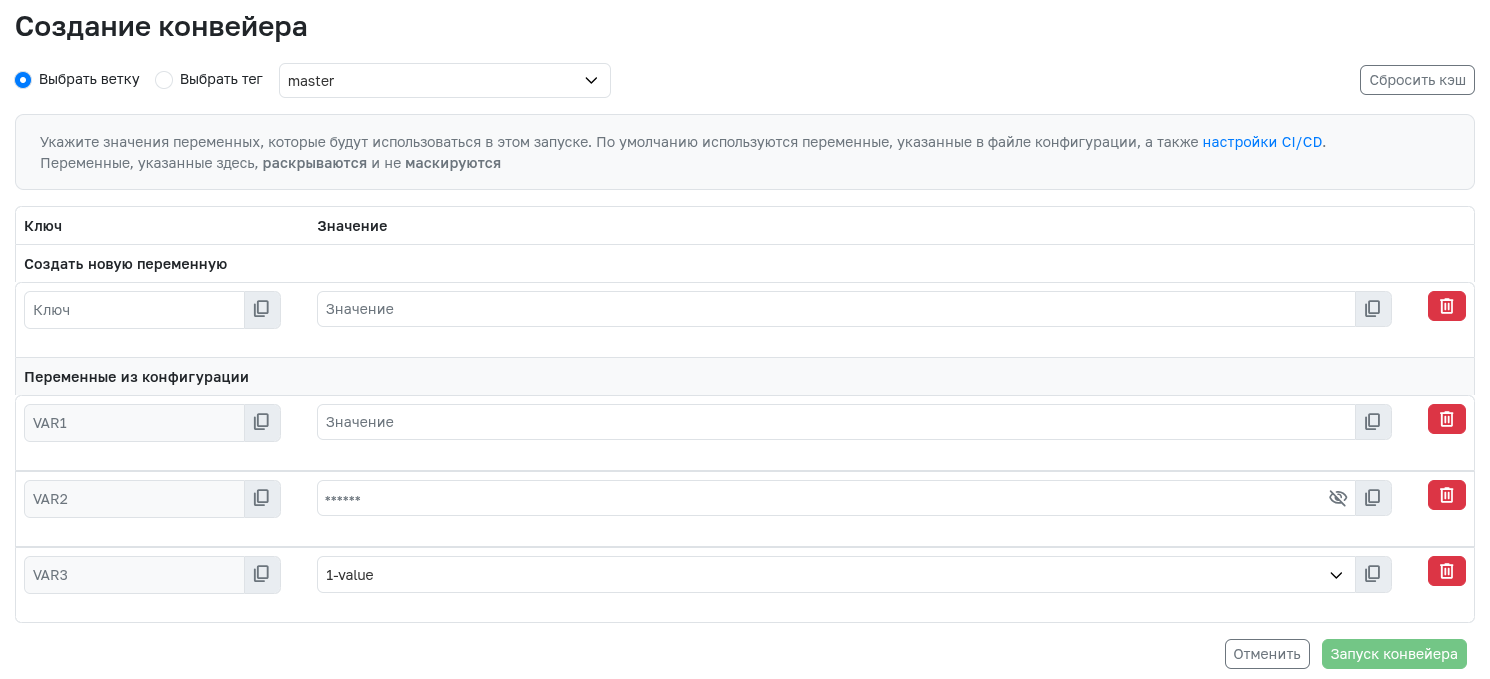
When triggering a pipeline via the web interface, you can specify prefill variables. Such variables can have a unique value for each individual pipeline. The keywords description, value, and options allow you to prefill the key and value of such variables:
description- mandatory field. The variable description, which can include all necessary information. This keyword is required for a standard CI/CD variable to become a prefill variable.value- optional field. Allows you to specify a variable value that can be overridden when the pipeline is triggered.options- optional field. A set of values available for the variable. If this keyword is present, it becomes impossible to override the variable value. When using this keyword, you must specify one of the possible values in thevaluekeyword.
Prefill variables are only available at the level of the entire configuration file and cannot be defined at the job level.
Example
variables:
  VAR1:
    description: "Variable without a default value"
  VAR2:
    description: "Variable with a default value"
    value: "test-value"
  VAR3:
    description: "Variable with selectable values"
    value: "1-value"
    options:
      - "1-value"
      - "2-value"
CI/CD variable override order
The override priority for different variable sources is as follows (in descending order):
- Variables declared when creating a pipeline, in a scheduler schedule, in a top-level pipeline when using
trigger, or when triggering via the REST API. - Variables declared in the project settings in the CI/CD Settings section.
- Variables declared in the company/team/group settings in the CI/CD Settings section.
- Variables declared in the Admin panel in the CI/CD section on the CI/CD Variables tab.
- Variables declared in a job using the
parallel:matrixkeyword in the configuration.yamlfile. - Variables declared for a job in the configuration
.yamlfile. - Global variables declared for the pipeline in the configuration
.yamlfile. - Predefined variables.
Variables with equal priority overwrite each other.
Example of working with different variable types
- A masked variable
POPULAR_VARwith the valuePopular from projectis declared through the UI for the project. - In the
variablesfield for the pipeline, a variablePOPULAR_VAR: "Popular from pipeline"is declared, as well as a variableOBSCURE_VAR: "Obscure from pipeline". - In the
variablesfield for the jobjob 0, variables with the following values are declared:POPULAR_VAR: "Popular from job 0",OBSCURE_VAR: "Obscure from job 0". - As a result of the pipeline run, for job
job 0, the variable values will be as follows:POPULAR_VARwill have the valuePopular from projectand be masked, whileOBSCURE_VARwill have the valueObscure from job 0. - Thus, for the variable
POPULAR_VAR, neither the value from the job nor the value from the pipeline overwrote the value declared through the UI for the project. Meanwhile, the variable value declared in the pipeline (OBSCURE_VAR) was overwritten for jobjob 0.
Using CI/CD variables
All CI/CD variables are set as environment variables in the pipeline execution environment. To access environment variables, use the shell syntax of your environment. Below are examples of using CI/CD variables for some shells.
Bash
To access environment variables in Bash, sh, and similar shells, prefix the CI/CD variable with $:
variables:
  MY_VAR: "Hello, World!"

my_job:
  script:
    - echo "$MY_VAR"
PowerShell
To access environment variables in the Windows PowerShell environment, prefix the variable name with $env:
variables:
  MY_VAR: "Hello, World!"

my_job:
  script:
    - 'echo $env:MY_VAR'
inputs
Use inputs to increase the flexibility of CI/CD configuration. inputs and CI/CD variables can be used similarly, but have different advantages:
inputsprovide typed parameters for reusable templates with built-in validation during pipeline creation. To define specific values when triggering a pipeline, it is recommended to useinputsinstead of CI/CD variables.- CI/CD variables offer flexible values that can be defined at multiple levels but can be changed during pipeline execution. CI/CD variables are recommended for values that need to be available in the job execution environment.
Use spec:inputs in the header (the header is separated using ---) of the .yaml file to define inputs parameters that can be used in the configuration file.
Example:
spec:
  inputs:
    job-prefix:
      default: "production"
      description: "Deployment scope"
      options: [ "production", "testing", "development" ]
    version:
      default: "1.0"
      type: number
      regex: "[0-9]\.[0-9]"
---

$[[ inputs.job-prefix ]]-deployment:
  image: gitflic-$[[ inputs.version ]]
  script:
    - ./deployment.sh
spec.inputs.default
Use the optional spec.inputs.default field to define a default value. After defining a default value, using inputs in the configuration file is no longer mandatory. If no default value is defined, using inputs inside the include keyword family is mandatory.
Keyword type: Global keyword.
spec.inputs.description
Use the optional spec.inputs.description field to specify a description for defined inputs. The description does not affect the inputs but can help users understand its details or expected values.
Keyword type: Global keyword.
spec.inputs.options
Use the optional spec.inputs.options field to specify a list of allowed values for inputs. Using values outside the specified list is not allowed.
Keyword type: Global keyword.
spec.inputs.regex
Use the optional spec.inputs.regex field to specify a regular expression that the value of inputs must match. If you try to use any value that does not match the pattern as the inputs value, an error will occur.
Keyword type: Global keyword.
spec.inputs.type
Use the optional spec.inputs.type field to specify a type for inputs. If you try to use any type other than the specified one as the inputs value, an error will occur. Possible values:
string- string. Used by default if thetypefield is not defined.array- array.number- number.boolean- boolean valuetrueorfalse.
Keyword type: Global keyword.
Using inputs
To use inputs in any part of the .yaml file, use the construct $[[ inputs.{inputsName} ]], where {inputsName} is the name of a defined inputs. When the configuration is expanded, this construct will be replaced with the default value from the default field or the value passed inside the include keyword family.
When including a file into the configuration using include, you can pass a value that will be set for a specific inputs defined in the included file. The passed value must comply with the rules set in the options and regex fields, if present.
Example:
include:
  - local: 'gitflic-1.yaml'
    inputs:
      job-prefix: "testing"
      export_results: true
spec:
  inputs:
    job-prefix:
      default: "production"
      description: "Deployment scope"
      options: "production, testing, developing"
    export_results:
      default: "false"
      type: boolean
---

$[[ inputs.job-prefix ]]-deployment:
  script:
    - ./$[[ inputs.job-prefix ]]-deployment.sh

export-job:
  rules:
    - if: $[[ inputs.export_results ]] == true
  script:
    - ./export.sh
parallel:matrix
This keyword allows you to define a matrix of variables to create multiple instances of the same job with different values of the specified variables within a single pipeline.
Keyword type: Job keyword.
When working with this keyword, the following requirements should be considered:
- The matrix is limited to 200 created jobs.
- In the
needskeyword, you must pass the full job name from the matrix with brackets and the variable values, or use theneeds:parallel:matrixconstruct.
Example
matrix_jobs:
  stage: deploy
  script:
    - echo "here some script"
  parallel:
    matrix:
      - PROVIDER: name1
        STACK:
          - value1
          - value2
          - value3
      - PROVIDER: name2
        STACK: [value4, value5, value6]
      - PROVIDER: [name3, name4]
        STACK: [value7, value8]
The example generates 10 parallel matrix_jobs jobs, each with different pairs of PROVIDER and STACK values:
deploystacks: [name1, value1]
deploystacks: [name1, value2]
deploystacks: [name1, value3]
deploystacks: [name2, value4]
deploystacks: [name2, value5]
deploystacks: [name2, value6]
deploystacks: [name3, value7]
deploystacks: [name3, value8]
deploystacks: [name4, value7]
deploystacks: [name4, value8]
stage
Use stage to define the stage for a job.
Keyword type: Job keyword.
Example:
stages:
  - build
  - deploy

job:
  stage: build
script
Use script/scripts to specify commands to be executed by the runner.
Keyword type: Job keyword.
Allowed values: Array of strings.
job1:
  scripts: apt-get update

job2:
  scripts:
      - apt-get -y install maven
      - apt-get -y install git
before_script
Use before_script/before_scripts to specify commands that should be executed before the main commands of each job after artifacts are restored.
When using before_script as a global keyword, the commands will be executed before each job.
Keyword type: Job keyword. Can be used as a global keyword.
Allowed values: Array of strings.
Example:
job1:
  scripts: apt-get update
  before_script:
    - apt-get -y install maven
    - apt-get -y install git
If any command declared in the before_script block finishes with an error, then:
- all commands in the
scriptsblock will be skipped - jobs from the
after_scriptsblock will be executed
after_script
The after_script/after_scripts keyword allows you to specify commands that will be executed after the main commands of the job finish.
-
If
after_scriptis defined at the global level, the specified commands will be executed after each job, regardless of its status. -
If
after_scriptis defined inside a specific job, the commands will be executed only after that job.
Keyword type: Job keyword. Can be used as a global keyword.
Allowed values: Array of strings.
Example:
job1:
  scripts: apt-get update
  after_script:
    - apt-get update
    - apt-get -y install maven
    - apt-get -y install git
Additional information:
If the job times out or is canceled, the after_script commands are not executed.
artifacts
Use artifacts to specify which files to save as job artifacts. Job artifacts are a list of files and directories that are attached to the job when it runs.
By default, jobs automatically download all artifacts created by previous jobs within the same stage.
When using the needs keyword, jobs can only download artifacts from jobs defined in the needs configuration.
Keyword type: Job keyword.
Allowed values: Array of file paths relative to the project directory.
artifacts:paths
Paths are relative to the project directory and must be specified in relative format. Absolute paths or references to files outside the repository directory are not supported.
Example:
artifacts:
    paths:
      - bin/usr/
      - bin/path
      - frontend/saw
artifacts:name
Use artifacts:name to set the name of the artifact created as a result of the job.
Example:
artifacts:
  name: job_artifacts
  paths:
    - bin/usr/
    - bin/path
    - frontend/saw
artifacts:reports
Use artifacts:reports to upload SAST/DAST reports and junit reports.
The results of junit test reports are displayed on the job's
Teststab.
Keyword type: Job keyword. You can only use it as part of a job.
Allowed values: Array of file paths relative to the project directory.
Example:
artifacts:
  reports:
    sast:
      paths:
        - sast_report.json
    dast:
      paths:
        - dast_report.json
        - dast_report_2.json
    junit:
      paths:
        - target/surefire-reports/*
    patch:
        paths:
            - example.patch
            - example2.patch
For more details on working with patch files in merge requests, read the article Applying LLM-generated patches in Merge Requests.
artifacts:reports:dotenv
Use artifacts:reports:dotenv to pass environment variables as an artifact.
Using scripts, variables are added to a file with the .env extension.
Variables are available for use in jobs of subsequent pipeline stages.
To use variables from the dotenv file in the stage where they were created, you must add a dependency in needs to the job where the variables are created.
To prevent jobs from using variables from dotenv, you can:
-
pass to
needsthe job in which thedotenvfile is created and specify theartifacts: falseparameter for itneeds: - job: job_with_dotenv artifacts: false -
specify dependencies only on jobs where no
dotenvfile was generated. - pass an empty array to
needs.
The variable key must match the regular expression [A-Z0-9_]+
Keyword type: Job keyword. You can only use it as part of a job.
Allowed values: Path to a file relative to the project directory.
Example:
script:
  - echo "DOTENV_VARIABLE=value from job" >> variables.env
artifacts:
  reports:
    dotenv:
      paths: variables.env
artifacts:expire_in
Use artifacts:expire_in to specify the artifact storage time. After the specified time expires, the artifact will be deleted.
By default, the storage time is specified in seconds. To specify time in other units, use the syntax from the examples:
'55'55 seconds20 mins 30 sec2 hrs 30 min2h30min2 weeks and 5 days9 mos 10 day10 yrs 3 mos and 10dnever
List of artifacts not subject to deletion:
- Artifacts from the last pipeline. This behavior can be changed in the service settings
- Locked artifacts. These artifacts will not be deleted until they are unlocked.
- Artifacts for which
expire_in: neveris set.
Example:
job:
  artifacts:
    expire_in: 1 week
artifacts:when
Use artifacts:when to specify the job execution result under which the artifact will be created.
By default, artifacts are created only for successful jobs.
Possible values:
alwayson_success(default)on_failure
Example:
job:
  artifacts:
    paths:
      - report.txt
    when: always
needs
Use needs to specify dependencies between jobs in a pipeline. The needs keyword allows you to explicitly define the order of job execution.
Jobs can only download artifacts from jobs defined in needs. Jobs in later stages automatically download all artifacts created in earlier stages if they are specified in needs. When specifying an array of jobs, the job will only run after all specified jobs have completed successfully.
Keyword type: Job keyword.
Allowed values: Array of file paths relative to the project directory.
Example:
stages:
  - build
  - test

build_job:
  stage: build
  script:
    - echo "Building..."

test_job:
  stage: test
  script:
    - echo "Testing..."
  needs: [ build_job ]
needs:parallel:matrix
GitFlic allows you to specify jobs that run using a matrix.
Jobs can use parallel:matrix to run a job multiple times in parallel in the same pipeline, but with different variable values for each job.
Keyword type: Job keyword.
Example
# Creating a job with a parameter matrix
job-1:
  stage: test
  script:
    - echo "$PROVIDER"
    - echo "$STACK"
  parallel:
    matrix:
      - PROVIDER: ["qqq", "www", "eee"]
        STACK: ["111", "222", "333"]

# A job specifying one matrix job in needs
job-2:
  stage: build
  needs:
    - job: job-1
      parallel:
        matrix:
          - PROVIDER: qqq
            STACK: 111
  script:
    - echo "Performing build"

# A job specifying multiple matrix jobs in needs
job-3:
  stage: build
  needs:
    - job: job-1
      parallel:
        matrix:
          - PROVIDER: [qqq, www, eee]
            STACK: [111, 222, 333]
  script:
    - echo "Performing build"
needs:pipeline
Use needs:pipeline:job to obtain artifacts in child pipelines created in the same project as the parent pipeline using the trigger:include keyword family.
Keyword type: Job keyword.
needs:pipeline - In this field, you must specify the UUID of the parent pipeline from which the artifact should be obtained. To specify the correct UUID, use the predefined variable $CI_PIPELINE_ID, whose value must be passed from the parent pipeline.
needs:pipeline:job - In this field, you must specify the name of the job from the parent pipeline during which the required artifact is generated.
needs:pipeline:artifacts - Optional field. The default value is true. If set to false, the required artifact will not be passed to the child pipeline, but the job with this keyword will be available for execution.
Example
child-job:
  scripts:
    - cat artifact.txt
  needs:
    - pipeline: $PARENT_PIPELINE_ID
      job: parent-job
You can see a working example of passing artifacts between parent and child pipelines here.
needs:project
Use needs:project to obtain artifacts from the specified job.
needs:project - In this field, you must pass the path to the project with the required artifact in the format {ownerAlias}/{projectAlias}.
| Path variable | Description |
|---|---|
ownerAlias |
Project owner alias |
projectAlias |
Project alias |
needs:project:job - In this field, you must specify the name of the job during which the required artifact was generated.
needs:project:ref - A reference to the git object (branch or tag) on which the job specified in the needs:project:job field was executed.
needs:project:artifacts - Optional field. The default value is true. If set to false, the required artifact will not be obtained, but the job with this keyword will be available for execution.
Example
deploy-job:
  script:
    - echo "Deploying..."
  needs:
    - project: adminuser/build-project
      job: build-job
      ref: master
You can see a working example of passing artifacts between pipelines here.
when
Use when to configure job launch conditions. If not defined in the job, the default value is when: on_success.
Keyword type: Job keyword.
Possible values:
on_success(default): the job will only run if no earlier stage jobs failed or haveallow_failure: true.manual: the job will only run when manually triggered.
Example:
stages:
  - build
  - test
  - deploy

build_job:
  stage: build
  script:
    - echo "Building the project..."

test_job:
  stage: test
  script:
    - echo "Running tests..."
  when: on_success

deploy_job:
  stage: deploy
  script:
    - echo "Deploying the project..."
  when: manual
  only:
    - main
rules
Keyword type: Job keyword.
Use rules to control job creation and modify their field values based on logical expressions.
rules are evaluated at pipeline creation time. Evaluation occurs sequentially, stopping at the first true rule. When a true rule is found, the job is either included in or excluded from the pipeline, and the job's attributes are modified according to that rule.
rules are an alternative to the only/except keywords and cannot be used together with them.
If a job has both rules and only and/or except, pipeline processing will fail with an error.
rules is an array of rules, each consisting of an arbitrary set of the following keywords:
A rule from rules is true if the if field is either absent or evaluates to a true boolean expression.
The job will be created if:
rulesis not declared or is an empty array.- The first true rule in order has
whennot set tonever.
The job will not be created if:
- None of the rules in
rulesis true. - The first true rule in order has
when: never.
rules:if
Use rules:if to determine under what conditions a rule will be true.
Possible values
An expression with CI/CD variables, namely:
- Comparing a variable to a string.
- Comparing two variables.
- Checking if a variable exists.
- Comparing a variable to a
regex pattern. - Any combination of the previous expressions using logical operators
&&or||. - Any previous expression wrapped in
(and).
Comparing a variable to a string
You can use the equality operators == and != to compare a variable to a string.
Both single ' and double " quotes are allowed.
The order of operands does not matter, so the variable can be first, or the string can be first. For example:
if: $VAR == "string"if: $VAR != "string"if: "string" == $VAR
You can compare the values of two variables with each other. For example:
if: $VAR1 == $VAR2if: $VAR1 != $VAR2
You can compare a variable's value to null:
if: $VAR == nullif: $VAR != null
You can compare a variable's value to an empty string:
if: $VAR == ""if: $VAR != ""
You can check for the existence of a variable:
if: $VAR
This expression will be true only if the variable is defined and its value is not an empty string.
Comparing a variable to a regex pattern
You can perform regular expression matching on a variable's value using the =~ and !~ operators.
The syntax for regular expressions is RE2.
The regular expression must be wrapped in forward slashes /.
Matching is true if:
- Operator
=~: at least one substring is found that fully satisfies the regular expression. - Operator
!~: not a single substring is found that fully satisfies the regular expression.
Examples:
if: $VAR =~ /^feature/if: $VAR !~/^feature/
The first expression will be true for the variable value "feature/rules/if" and false for "base/feature".
The second expression will be false for the first value and true for the second.
Note: Single-character regular expressions (such as /./) are not supported and cause an error.
Another variable can serve as the right operand, and its value will be interpreted as a regular expression. For example:
if: $VAR =~ $REGEX_VARif: $VAR !~ $REGEX_VAR
Note: If the variable's value is not wrapped in /, it will be interpreted as wrapped (e.g., for REGEX_VAR: "^feature", the result is equivalent to REGEX_VAR: "/^feature/").
Two expressions can be combined using logical operators:
$VAR1 =~ /^feature/ && $VAR2 == "two"$VAR1 || $VAR2 != "three" && $VAR3 =~ /main$/$VAR1 AND $VAR2$VAR1 OR $VAR2
Expressions can be grouped using ( and ):
$VAR1 && ($VAR2 == "something" || $VAR3 == "something else")
Logical operators and ( ) have the following execution priority:
- Expression in parentheses.
- Conjunction of expressions -
&&orAND. - Disjunction of expressions -
||orOR.
Example:
job:
  scripts: echo "This job uses rules!"
  variables:
    VAR1: "one"
  rules:
    - if: $CI_COMMIT_REF_NAME == $CI_DEFAULT_BRANCH
      when: never
    - if: $CI_COMMIT_REF_NAME =~ /^feature/ && VAR1 == "one"
      allow_failure: true
      variables:
        VAR1: "one from rule"
        VAR2: "two from rule"
    - if: $CI_COMMIT_TAG
    - when: manual
For this job, four rules are defined:
- The first rule will be true if the pipeline is created on the project's default branch (e.g.,
mainormaster). - The second rule will be true if the pipeline is created on a branch whose name begins with
featureand the variableVAR1contains the stringone. - The third rule will be true if the
CI_COMMIT_TAGvariable is declared. - The fourth rule is always true.
If the first rule is true, the job will not be created because of when: never.
If the second rule is true and the first is false, the job will be created. The job's allow_failure field will become true, the variable VAR1 will be overwritten, the variable VAR2 will be added to the job, and the job's when field will not be changed.
If the third rule is true and the previous ones are false, the job will be created, and its fields will not be changed.
If none of the previous rules are true, the fourth rule will change the job's when field to manual.
rules:changes
Use rules:changes to determine when to add a job to a pipeline, based on whether there are changes in certain files or directories.
If compare_to is not used, the check for changes will occur between different git objects depending on the pipeline type:
- Merge request pipeline and Merge result pipeline -
rules:changescompares changes between the source and target branches in the merge request. - Branch pipelines and Tag pipelines -
rules:changescompares changes between the commit on which the pipeline was triggered and its parent commit.
rules:changes:paths
Use rules:changes:paths to specify the paths to files for which the presence of changes is required for the rule to be true.
Keyword type: Job keyword.
An array containing file paths, supporting the following options:
- A file path that may contain CI/CD variables
- Wildcard patterns:
- A single directory, e.g.,
path/to/directory/* - A directory and all its subdirectories, e.g.,
path/to/directory/**/*
- A single directory, e.g.,
- Wildcard patterns with extensions, e.g.,
path/to/directory/*.mdorpath/to/directory/*.{java,py,sh}
Example:
job-build:
  script: docker build -t my-image:$CI_COMMIT_REF_NAME .
  rules:
    - changes:
        paths:
          - Dockerfile
          - build/*
In this example, the job is included in the pipeline if there is a change to the Dockerfile or any file in the build directory.
rules:changes:compare_to
Use rules:changes:compare_to to specify which git objects to compare against when looking for changes in the files listed in rules:changes:paths.
Keyword type: Job keyword. Can only be used together with rules:changes:paths.
Supported values:
- Branch name in short
masteror long formrefs/heads/master - Tag name in short
v.4.0.0or long formrefs/tags/v.4.0.0 - Commit hash, e.g.,
1a2b3c4
CI/CD variables are supported.
Example:
job-build:
  script: docker build -t my-image:$CI_COMMIT_REF_NAME .
  rules:
    - changes:
        paths:
          - Dockerfile
        compare_to: "develop"
In this example, the job is included in the pipeline if the Dockerfile has changed compared to the develop branch.
rules:allow_failure
If this field is defined when the rule is true, it overwrites the job's allow_failure field value.
rules:variables
If this field is defined when the rule is true, it adds variables to the job, potentially overwriting already declared ones.
Possible values: A set of fields in the format VARIABLE_NAME: "variable value".
Example:
job:
  variables:
    ARGUMENT: "default"
  rules:
    - if: $CI_COMMIT_REF_NAME == $CI_DEFAULT_BRANCH
      variables:                              # Overwrite the value
        ARGUMENT: "important"                 #   of an existing variable
    - if: $CI_COMMIT_REF_NAME =~ /feature/
      variables:
        IS_A_FEATURE: "true"                  # Define a new variable
  scripts:
    - echo "Run script with $ARGUMENT as an argument"
    - echo "Run another script if $IS_A_FEATURE exists"
| Variable name | Value | Result |
|---|---|---|
GIT_STRATEGY |
none |
Disable repository cloning |
GIT_STRATEGY |
Any other than none |
git fetch is used |
ARTIFACT_DOWNLOAD_STRATEGY |
none |
Disable artifact downloading |
rules:when
If the rule is true and this field is defined, it overwrites the job's when field value.
Possible values
never- the job is not added to the pipelinemanual- the job runs only when started manually from the UI.on_success- the job runs only if all jobs withallow_failure: falsecomplete successfully.
rules:exists
Use rules:exists to add a job to the pipeline only if the specified files or directories exist in the repository.
The check is performed when the pipeline is created. If at least one path specified in exists is found, the condition is considered met.
Keyword type: job keyword. Used inside rules.
Supported values:
-
a file path relative to the repository root;
-
a directory path;
-
a wildcard pattern;
-
a path containing a CI/CD variable;
-
a list of several paths and patterns.
Example:
build-job:
  stage: build
  script:
    - echo "Файл для сборки найден"
  rules:
    - exists:
        - Dockerfile
        - pom.xml
        - "src/**/*.java"
The build-job job is added to the pipeline if at least one of the specified paths exists.
Paths within one exists list are combined using OR logic.
Checking files and directories
Paths are specified relative to the repository root.
To check a directory, it is recommended to add / at the end of the path:
rules:
  - exists:
      - docs/
A path without a trailing / can also be used to check a directory.
If / is specified after a file name, the condition is not met because the path is interpreted as a directory.
Paths are case-sensitive. For example, readme.md and README.md are considered different paths.
Wildcard patterns
Wildcard patterns can be used in paths.
| Pattern | Description | Example |
|---|---|---|
* |
Matches a sequence of characters within one path segment | *.md |
** |
Matches files and directories at multiple nesting levels | src/**/*.java |
The *.md pattern checks for Markdown files in one directory.
The **/*.java pattern checks for Java files at any nesting depth.
Using variables
CI/CD variables can be used in paths.
variables:
  TARGET_DIR: docs

documentation-job:
  stage: test
  script:
    - echo "Документация найдена"
  rules:
    - exists:
        - "$TARGET_DIR/*.md"
Before the check, the variable value is substituted into the path.
If the variable is not defined, its name remains part of the path being checked.
Combining with other conditions
rules:exists can be used in one rule together with other keywords:
The if, changes, and exists conditions specified within one rule are combined using AND logic.
Example:
documentation-job:
  stage: test
  script:
    - echo "Условия выполнены"
  rules:
    - if: '$TARGET_DIR == "docs"'
      changes:
        - "docs/**"
      exists:
        - README.md
      when: manual
The job is added to the pipeline only when all conditions are met at the same time:
-
the
$TARGET_DIRvariable contains the valuedocs; -
changes are detected in the
docsdirectory; -
the
README.mdfile exists.
The rules:when value determines job behavior after the rule matches.
Rule processing order
Rules in the rules list are processed from top to bottom.
The first rule for which all specified conditions are met is applied. After the first match, the remaining rules are not checked.
example-job:
  stage: test
  script:
    - echo "Проверка правила"
  rules:
    - exists:
        - README.md
      when: never
    - when: manual
If the README.md file exists, the first rule is applied and the job is not added to the pipeline.
workflow
Use workflow to control pipeline creation.
Keyword type: Global keyword.
workflow:rules
Use workflow:rules to control pipeline creation and modify their field values based on logical expressions. workflow:rules are evaluated before pipeline creation. Evaluation occurs sequentially, stopping at the first true rule. When a true rule is found, the pipeline is either created or not, and the job's attributes are modified according to that rule.
The set of rules inside workflow:rules is identical to rules with the following exceptions:
- It affects the pipeline as a whole, not an individual job.
- When using the
workflow:rules:whenkeyword, the possible values arealwaysandnever. Using any other value will cause a configuration file parsing error. - The value of the predefined variables
CI_PIPELINE_IDandCI_PIPELINE_IIDis not available because the pipeline has not yet been created at the stage whenworkflow:rulesis evaluated.
The pipeline will be created if:
workflow:rulesis not declared or is an empty array.- The first true rule in order has
when: always.
The pipeline will not be created if:
- None of the rules in
workflow:rulesis true. - The first true rule in order has
when: never.
Example:
workflow:
  rules:
    - if: $CI_PIPELINE_SOURCE == "merge_request_event"
      variables:
         VAR1: 'true'

build:
  stage: build
  scripts:
    - echo "Variable VAR1 = $VAR1"
tags
Use tags to configure the runner. Variables can be used to specify tags.
You can specify tags for a specific runner in its settings.
Keyword type: Job keyword.
Possible values: Array of tag names.
Example:
job:
  tags:
    - test
    - build
allow_failure
Use allow_failure to determine whether the pipeline should continue in case of job failure.
-
To allow the pipeline to continue executing subsequent jobs, use
allow_failure: true. -
To prevent the pipeline from executing subsequent jobs, use
allow_failure: false.
Keyword type: Job keyword.
Possible values:
truefalse(default)
For
manualjobs that run only when manually triggered from the UI, the default value istrue.
To set a rule for all pipeline jobs in the pipeline settings, use default:.
Example:
default:
  allow_failure: true
allow_failure:exit_codes
Using allow_failure:exit_codes is suitable for managing job statuses when a job may be completed with one of the specified exit codes. The job is treated as allow_failure: true for any of the listed exit codes and allow_failure: false for any other exit code.
When an exception occurs, the job will be displayed in the interface with a "Warning" status, and the pipeline will continue executing the remaining jobs.
Keyword type: Job keyword.
Supported values:
- A single value
- An array of values
Example:
test_job_1:
  script:
    - echo "Executing script with exit code 1. This job will fail."
    - exit 1
  allow_failure:
    exit_codes: 137

test_job_2:
  script:
    - echo "Executing script with exit code 137. This job will finish with a warning. The pipeline will continue."
    - exit 137
  allow_failure:
    exit_codes:
      - 137
      - 255
except
Use except to specify branches on which the job will not be created.
Keyword type: Job keyword.
Possible values: Array of branch names.
Example:
job:
  except:
    - master
    - deploy
rulesare an alternative to theonly/exceptkeywords and cannot be used together with them. If a job specifies bothrulesandonlyand/orexcept, pipeline processing ends with an error.
only
Use only to specify branches on which the job will be created.
Keyword type: Job keyword.
Possible values: Array of branch names.
Example:
job:
  only:
    - master
rulesare an alternative to theonly/exceptkeywords and cannot be used together with them. If a job specifies bothrulesandonlyand/orexcept, pipeline processing ends with an error.
trigger
Use trigger to configure one pipeline to trigger another.
For triggers to work correctly across multiple projects, the user triggering the pipeline must have at least the developer role in the child project.
A single job cannot contain both
scriptandtriggerkeywords simultaneously.
Please note
The maximum depth of child pipeline calls is 3.
Keyword type: Job keyword.
trigger:project
trigger:project - This field specifies the project in which the pipeline is triggered.
trigger:branch - This field specifies the branch for which the pipeline will be triggered in the project specified in the trigger:project field.
trigger:strategy - This field specifies the relationship between the job and the child pipeline. If the keyword is absent, the trigger job completes immediately after creating the child pipeline, without waiting for its successful completion.
Possible value:
depend: Successful completion of the job requires successful completion of the child pipeline.
trigger:forward - This field specifies which variables will be passed to the other project when the trigger is started.
Possible values:
yaml_variables:true(default), orfalse. Whentrue, variables defined in the pipeline containing the trigger (both global and at the job level) are passed to child pipelines.pipeline_variables:trueorfalse(default). Whentrue, variables defined in the scheduler that creates the pipeline with the trigger are passed to child pipelines.
Example:
trigger-project:
  trigger:
    project: adminuser/cicd-child
    branch: master
    strategy: depend
    forward:
      yaml_variables: true
      pipeline_variables: true
trigger:include
The trigger:include keyword family is available for jobs. These keywords allow you to create a child pipeline in the same project in which the parent pipeline is created. It is possible to use several different trigger:include types within a single trigger job – in that case, all specified configuration files will be merged into one, on the basis of which the child pipeline will be created. The operation of these keywords is similar to that of include.
trigger:include:local
trigger:include:local- Allows you to create a child pipeline based on files in the repository, the absolute paths to which must be passed.
Example:
trigger-child:
  trigger:
    include:
      - local:
        - "gitflic-1.yaml"
    strategy: depend
    forward:
      yaml_variables: true
      pipeline_variables: true
trigger:include:project
-
trigger:include:project- Allows you to create a child pipeline based on files in another repository. Required fields: -
project_path- The path to the project in the format{ownerAlias}/{projectAlias}.
| Path variable | Description |
|---|---|
ownerAlias |
Project owner alias |
projectAlias |
Project alias |
ref- A reference to a git object (branch or tag) in which to look for the required file.file- The absolute path to the configuration file on the basis of which the child pipeline will be created.
Example:
trigger-child:
  trigger:
    include:
      - project:
          project_path: 'adminuser/cicd-child'
          ref: master
          file:
            - 'gitflic-1.yaml'
    strategy: depend
    forward:
      yaml_variables: true
      pipeline_variables: true
trigger:include:remote
This functionality is available in the self-hosted version of the service.
trigger:include:remote- Allows you to create a child pipeline based on files located remotely, the URLs to which must be passed.
trigger-child:
  trigger:
    include:
      - remote:
        - https://gitflic.ru/project/adminuser/cicd-child/blob/raw?file=gitflic-ci.yaml
    strategy: depend
    forward:
      yaml_variables: true
      pipeline_variables: true
trigger:include:artifact
trigger:include:artifact- Implements dynamic pipeline functionality – the ability to create a child pipeline based on a configuration file created within another CI/CD job. This field must specify the name of the file on the basis of which the child pipeline will be created. This file must be inside an artifact generated within another job specified in thetrigger:include:jobfield.trigger:include:job- This field must contain the name of the job within which the artifact containing the configuration file for forming the child pipeline is generated.
Special considerations when jobs are in the same stage.
If the artifact generation job and the trigger job are in the same stage, then the trigger job must use the needs keyword, specifying the job within which the artifact is generated. If the jobs are in different stages, the use of the needs keyword is optional.
stages:
  - artifact
  - trigger

job-parent:
  stage: artifact
  scripts:
    - echo -e 'from-artifact-job:\n scripts:\n - echo "$CI_PIPELINE_SOURCE"' > gitflic-1.yaml
  artifacts:
    paths:
      - gitflic-1.yaml

job-trigger:
  stage: trigger
  trigger:
    include:
      - artifact: gitflic-1.yaml
        job: job-parent
    strategy: depend
    forward:
      yaml_variables: true
      pipeline_variables: true
Passing artifacts between parent and child pipelines
Depending on the type of child pipeline (created in the same project as the parent or in a different one), you should use specific keywords to pass artifacts between pipelines.
When using the trigger:include keyword family, the child pipeline will be created in the same project as the parent. To pass artifacts generated in the parent pipeline to the child pipeline, use the needs:pipeline keyword.
Example of parent pipeline configuration
build-artifact:
  stage: build
  scripts:
    - echo "Example for artifact" >> artifact.txt
  artifacts:
    paths:
      - artifact.txt

job-trigger:
  stage: deploy
  trigger:
    include:
      - local:
        - "gitflic-1.yaml"
  variables:
    PARENT_PIPELINE_ID: $CI_PIPELINE_ID
Example of child pipeline configuration
deploy-job:
  stage: build
  script:
    - cat artifact.txt
  needs:
    - pipeline: $PARENT_PIPELINE_ID
      job: build-artifact
When using the trigger:project keyword, the child pipeline will be created in the specified project. To pass artifacts generated in the parent pipeline to the child pipeline, use the needs:project keyword.
Example of parent pipeline configuration
build-artifacts:
  stage: build
  script:
    - echo "Example for artifact" >> artifact.txt
  artifacts:
    paths:
      - artifact.txt

job-trigger:
  stage: deploy
  trigger:
    project: adminuser/child-project
Example of child pipeline configuration
deploy-job:
  stage: deploy
  script:
    - cat artifact.txt
  needs:
    - project: adminuser/parent-project
      job: build-artifacts
      ref: master
Optimizing the configuration yaml file
You can simplify and reduce duplication in configuration .yaml files using:
- The
extendskeyword - YAML markup functions such as anchor or
!references
extends
Use extends to inherit job configuration from other jobs or templates. If there are identical keywords in the template/job and the main job, the keywords from the main job will be used.
Keyword type: Job keyword.
For the main job, you must specify the stage keyword; otherwise, the job will be displayed in the default test stage.
Example:
.default_template:
  before_script:
    - echo "Executing before_script"
  script:
    - echo "Executing script"

build_job:
  stage: build
  extends: .default_template
  script:
    - echo "Building the project"
    - make build
Configuration after using the template
build_job:
  stage: build
  before_script:
    - echo "Executing before_script"
  script:
    - echo "Building the project"
    - make build
Anchor
Use the YAML markup anchor function to reuse keywords from other jobs or templates. If there are identical keywords in the template/job and the main job, the keywords from the main job will be used. When using several anchors with repeating keywords, the keywords from the first anchor will be used.
You cannot specify a job from an external .yaml file added to the configuration using the include keyword family as an anchor. To reuse fields from external jobs, you must use the YAML tag !references.
To mark a job as an anchor, use the construct &{anchorName} after the job name. To reference an anchor job, specify the anchor name in the format *{anchorName}.
To completely reuse an anchor, you must perform a merge using the construct <<: *{anchorName}.
Example:
.build_template: &build_anchor
  stage: build
  script:
    - echo "Executing script"

build_job:
  <<: *build_anchor
  image: build-img
Configuration after using the template
build_job:
  image: build-img
  stage: build
  script:
    - echo "Executing script"
To use an anchor as part of an array, reference it as an array element - *{anchorName}. For using anchors with keywords that contain arrays, only the following are available:
Example:
.deploy_template: &deploy_anchor
  - echo "Preparing the environment"
  - echo "Deploying"

deploy_job:
  stage: deploy
  scripts:
    - *deploy_anchor
    - echo "Close connection"
Configuration after using the template
deploy_job:
  stage: deploy
  scripts:
    - echo "Preparing the environment"
    - echo "Deploying"
    - echo "Close connection"
!references
Use the YAML tag !references to reuse keywords from other jobs or templates. The following keywords are available for reuse:
Reusing fields with !references is possible both from jobs declared in the same .yaml file and from those added to the configuration using the include keyword family.
Example:
.setup:
  script:
    - echo "Creating environment"
include:
  - local: configs.yaml

.teardown:
  after_script:
    - echo "Deleting environment"

test:
  script:
    - !reference [.setup, script]
    - echo "Some testing"
  after_script:
    - !reference [.teardown, after_script]
Configuration after using the template
test:
  script:
    - echo "Creating environment"
    - echo "Some testing"
  after_script:
    - echo "Deleting environment"
environment
Use environment to define the environment in which the deployment from the associated job will be performed.
Keyword type: Job keyword.
environment:name
Use environment:name to define the environment name.
Keyword type: Job keyword.
Possible values: The environment name may contain only letters, digits, -, _, /, $, {, }, ., and spaces, but cannot start or end with /.
It can contain CI/CD variables, including predefined variables, project-level and company/team-level variables, and variables declared in gitflic-ci.yaml.
Example:
deploy to production:
  stage: deploy
  script:
    - make deploy
  environment:
    name: production
Note: If the environment specified in environment:name does not exist, it will be created when the job runs.
environment:url
Use environment:url to define the environment URL.
Keyword type: Job keyword.
Possible values: A valid URL, for example https://prod.example.com.
It can contain CI/CD variables, including predefined variables, project-level and company/team-level variables, and variables declared in gitflic-ci.yaml.
Example:
deploy to production:
  stage: deploy
  script:
    - make deploy
  environment:
    name: production
    url: https://prod.example.com
environment:description
Use environment:description to define the environment description.
Keyword type: Job keyword.
Possible values: A text string. Limited to 600 characters.
It can contain CI/CD variables, including predefined variables, project-level and company/team-level variables, and variables declared in gitflic-ci.yaml.
Example:
deploy to production:
  stage: deploy
  script:
    - make deploy
  environment:
    name: production
    url: https://prod.example.com
    description: "Environment with realistic data"
environment:on_stop
An environment can be stopped using the on_stop keyword defined in the environment.
It declares another job that runs to stop the environment.
Keyword type: Job keyword.
Possible values: The name of an existing job.
Example:
deploy to production:
  stage: deploy
  script:
    - make deploy
  environment:
    name: production
    url: https://prod.example.com
    on_stop: stop_production

stop_production:
  stage: deploy
  script:
    - make delete-app
  when: manual
  environment:
    name: production
    action: stop
environment:action
Use environment:action to describe how the job will interact with the environment.
Keyword type: Job keyword.
Possible values: One of the following keywords:
start- Default value. Indicates that the job creates the environment and performs the deployment.prepare- Indicates that the job only prepares the environment. No deployment is created.stop- Indicates that the job stops the environment.verify- Indicates that the job only verifies the environment. No deployment is created.access- Indicates that the job only accesses the environment. No deployment is created.
Example:
stop_production:
  stage: deploy
  script:
    - make delete-app
  when: manual
  environment:
    name: production
    action: stop
environment:deployment_tier
Use deployment_tier to define the deployment tier of the environment.
Keyword type: Job keyword.
Possible values: One of the following:
productionstagingtestingdevelopmentother
Example:
deploy:
  stage: deploy
  script:
    - make deploy
  environment:
    name: customer-portal
    deployment_tier: production
Note: The default value is other. It will be set for the environment if environment:deployment_tier is absent.
environment:auto_stop_in
Use auto_stop_in to manage automatic environment stop by a timer.
Keyword type: Job keyword.
Possible values: A natural language-based timer, accepts the following time units:
50 seconds20 mins 30 sec2 hrs 30 min5 hours2h30min2 weeks and 5 days9 mos 10 day10 yrs 3 mos and 10dnever
Important!
Time units must be specified from larger (year) to smaller (second).
The default value when the keyword is absent from the job is never. Minimnal value - 1 hour.
services
Keyword type: Job keyword.
Use the services keyword to launch additional Docker containers alongside the job's main container, for example, to run a database or other helper services.
Services defined in a job are launched in the same isolated network as the main container and are only accessible within that job.
Example:
job:
  stage: test
  image: ubuntu:latest
  services:
    - postgres:latest
It is possible to use services in an extended syntax with additional parameters. In that case, a name directive must be specified for each service.
When using the extended syntax, all directives of the image keyword are supported.
services:name
Use services:name to specify the image for the additional container.
services:
    - name: postgres:latest
    - name: mysql:latest
services:command
Use services:command to specify the command for launching the additional container.
services:
    - name: docker:dind
      command: ["--tls=false"]
services:alias
Use services:alias to specify the name by which the container will be accessible on the network.
services:
    - name: docker:dind
      command: ["--tls=false"]
      alias: docker
If alias is not specified, the container will be accessible via automatically generated names.
In the example:
services:
  - tutum/wordpress:latest
Available names:
- tutum__wordpress
- tutum-wordpress
If both names are already taken, the job will fail at the execution stage.
Docker-in-Docker support
For the additional container with the docker:dind image to work correctly, you must configure container launching in privileged mode in the runner configuration.
docker.privileged=true
Please note that using the additional container with the docker:dind image when the docker.didEnable=true parameter is set may lead to incorrect behavior.
release
Use release to create releases during the execution of a CI/CD job.
Keyword support
This keyword is supported only by Docker mode runners when specifying the image registry.gitflic.ru/company/gitflic/gcli:latest.
Keyword type: Job keyword.
Example:
stages:
  - release

release-job:
  rules:
    - if: $CI_COMMIT_TAG
  image: registry.gitflic.ru/company/gitflic/gcli:latest
  stage: release
  release:
    name: "v5.0.0"
    description: "Release 5.0.0"
    tag_name: "$CI_COMMIT_TAG"
  script:
    - echo "Creating release $CI_COMMIT_TAG"
release.name
Use name to specify the name of the release being created. Maximum length is 40 characters.
Keyword type: Job keyword.
release.description
Use description to specify the description of the release being created.
Keyword type: Job keyword.
release.tag_name
Use tag_name to specify the name of the tag on which the release will be created. If a tag with the specified name does not exist, it will be automatically created on the commit on which the pipeline was triggered.
Keyword type: Job keyword.
Automated translation!
This page has been automatically translated. The text may contain inaccuracies.