Instructions for Paying for a Plan and Obtaining a License File
Payment for a Plan for Individuals
Working in a team of up to 5 people on gitflic.ru is not charged and is available for free. If you need to expand your team, you need to activate a plan with the required number of users for your employees.
Please note
When activating a plan, payment is made for each user; the 5 free users are only available in the free plan.
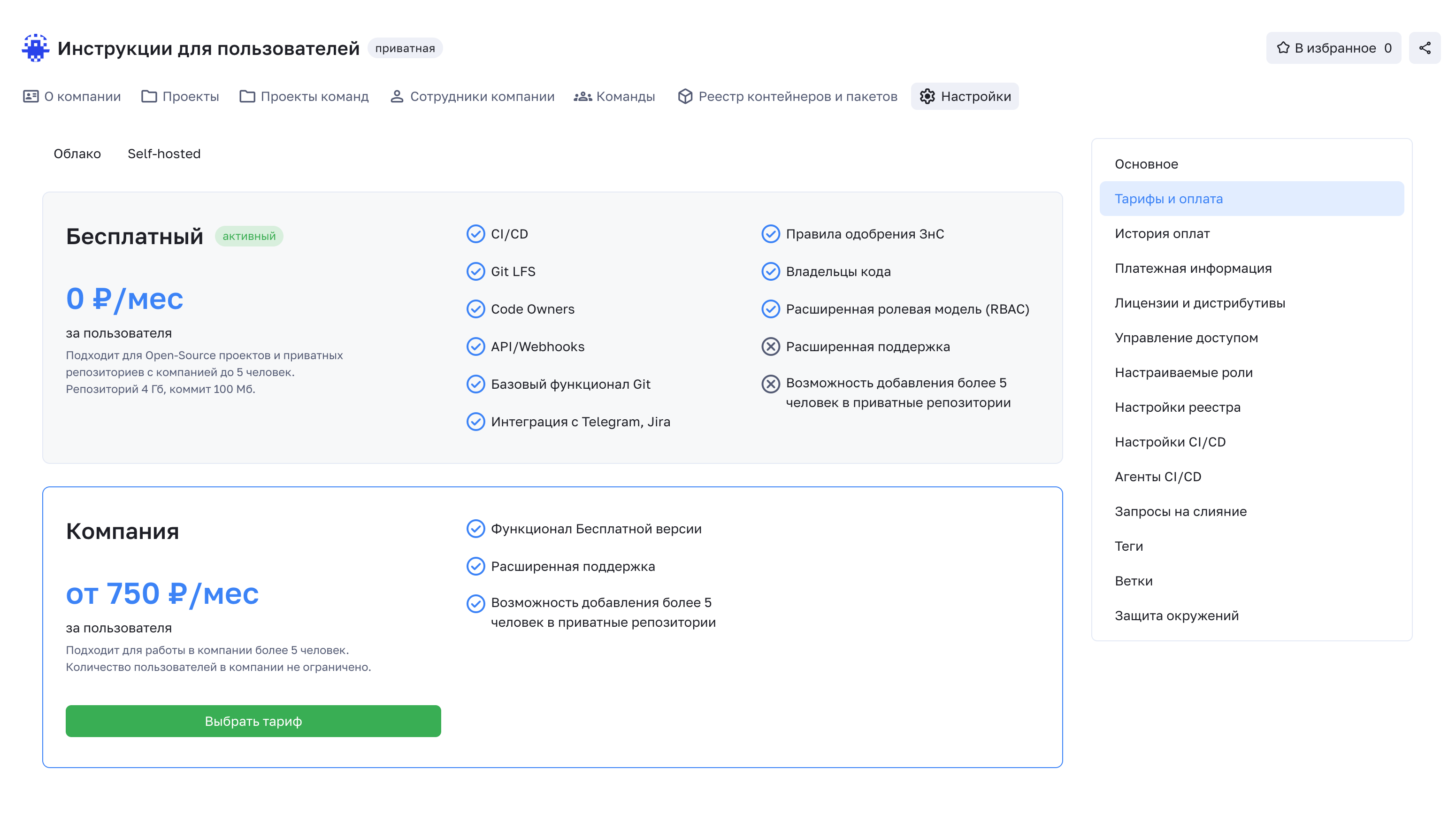
To activate a plan, go to your company (create a company if you don't have one) - Settings - Plans and Payments. Select the plan you wish to activate.
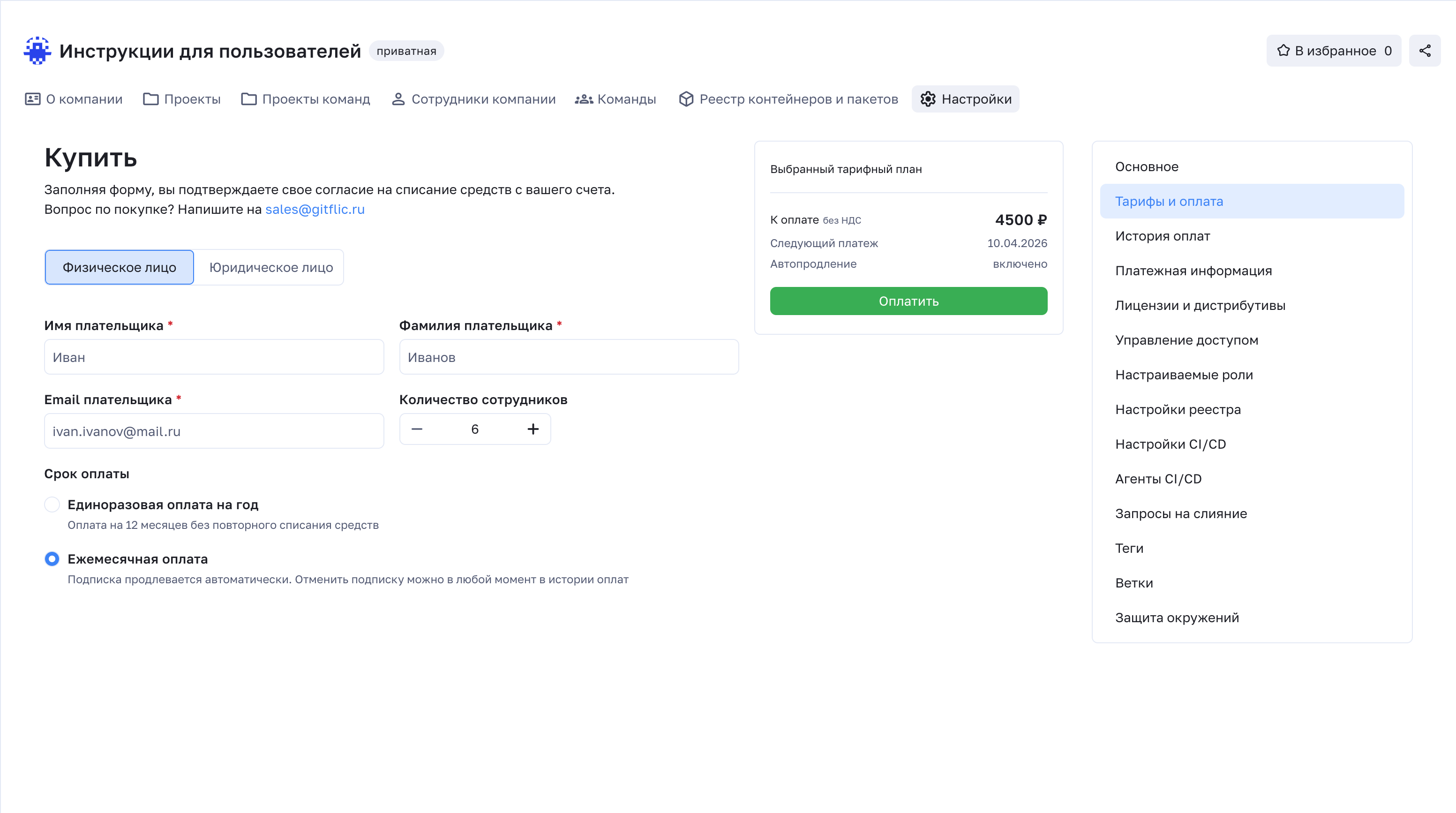
Fill out the form and click the Pay button. After payment confirmation, the plan will be activated automatically.
For questions regarding plan activation or other issues related to using gitflic.ru, contact support at support@gitflic.ru.
Payment for a Plan by Invoice for Legal Entities
Working in a team of up to 5 people on gitflic.ru is not charged and is available for free. If you need to expand your team, you need to activate a plan with the required number of users for your employees.
Please note
When activating a plan, payment is made for each user; the 5 free users are only available in the free plan.
To activate a plan, go to your company (create a company if you don't have one) and fill out the card with your company's legal information.
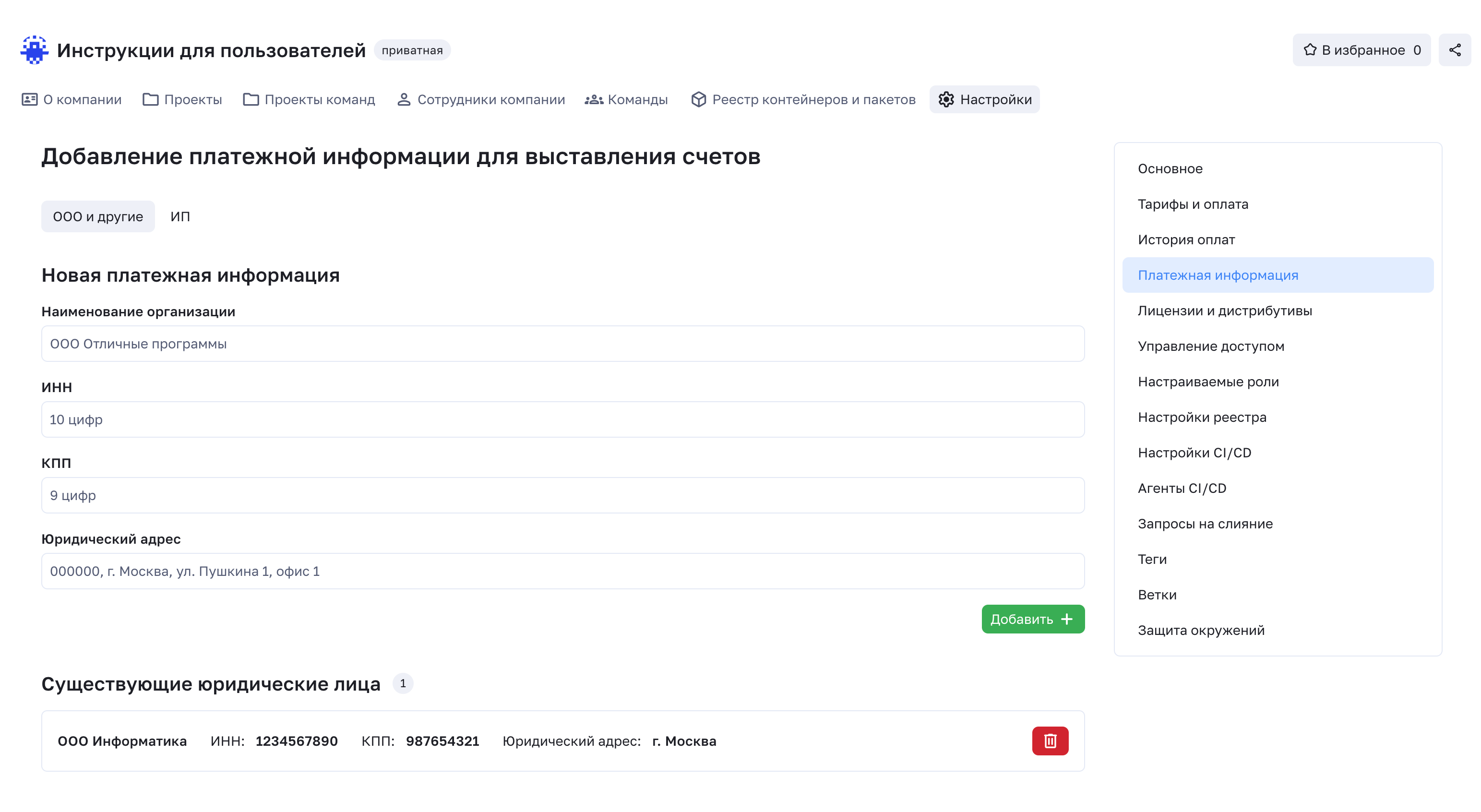
On the company page, go to Settings - Billing Information. Fill out your company's card and click Save.
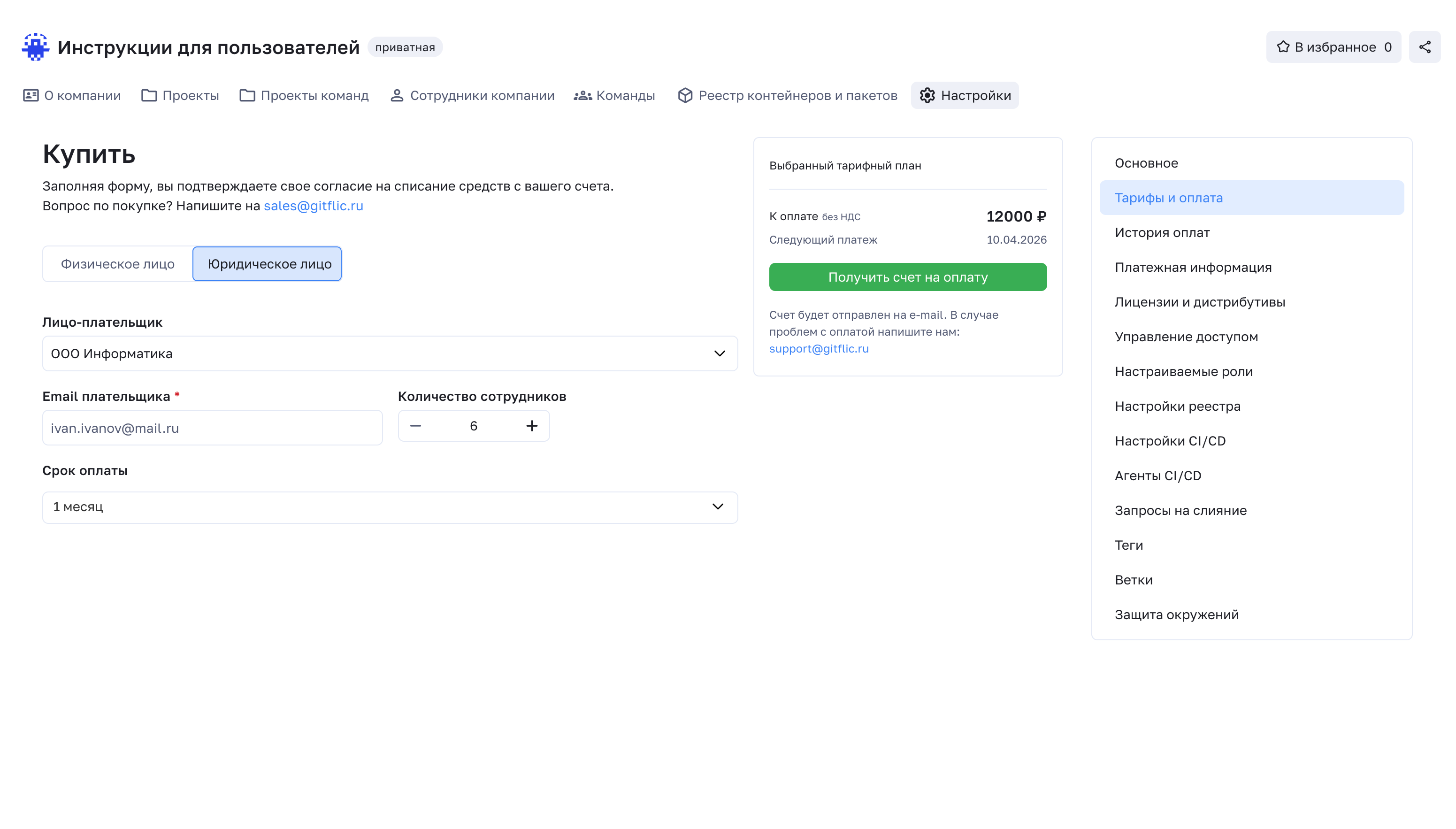
To pay for the plan, go to Settings - Plans and Payments. Select the plan to pay for and switch the tab to Legal Entity. Fill out the form with your contact details and click Get an invoice for payment.
Make the payment according to the invoice and write to sales@gitflic.ru. Be sure to include a link to your company on gitflic.ru in the email to match the information with the paid invoice. The plan will be activated manually after receiving your email.
Obtaining a License File for GitFlic PRO and Enterprise
To use these instructions, you need to obtain an Activation Key for the license.
To activate the key, go to your company (create a company if you don't have one) and fill out the card with your company's legal information.
On the company page, go to Settings - Billing Information. Fill out your company's card and click Save.
Go to Settings - Licenses and Distributions. Enter the previously obtained Activation Key.
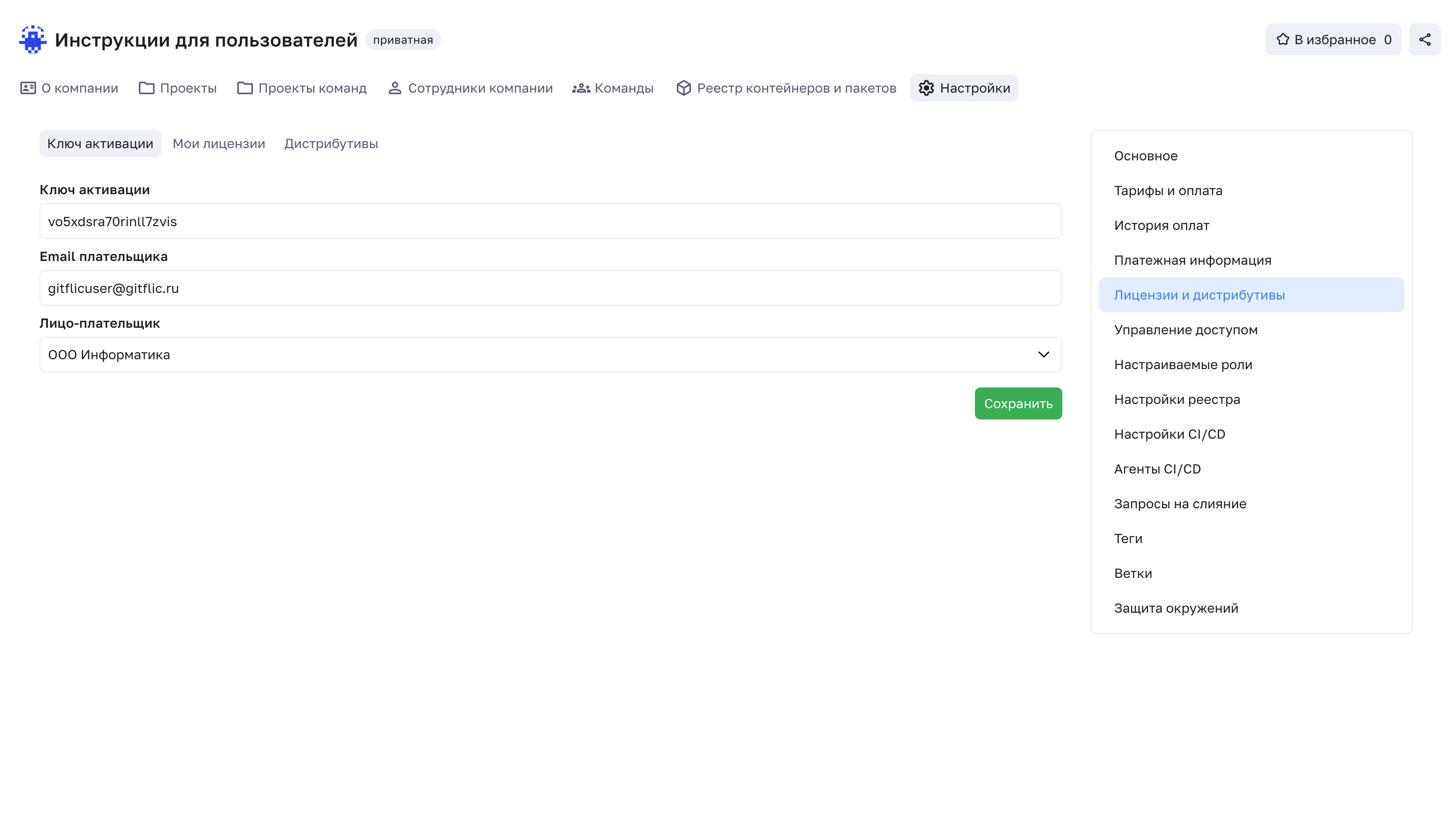
After successful saving, the information about the current license will be displayed on the My Licenses tab. Click Get license file to save the file for activating the license in the self-hosted version.
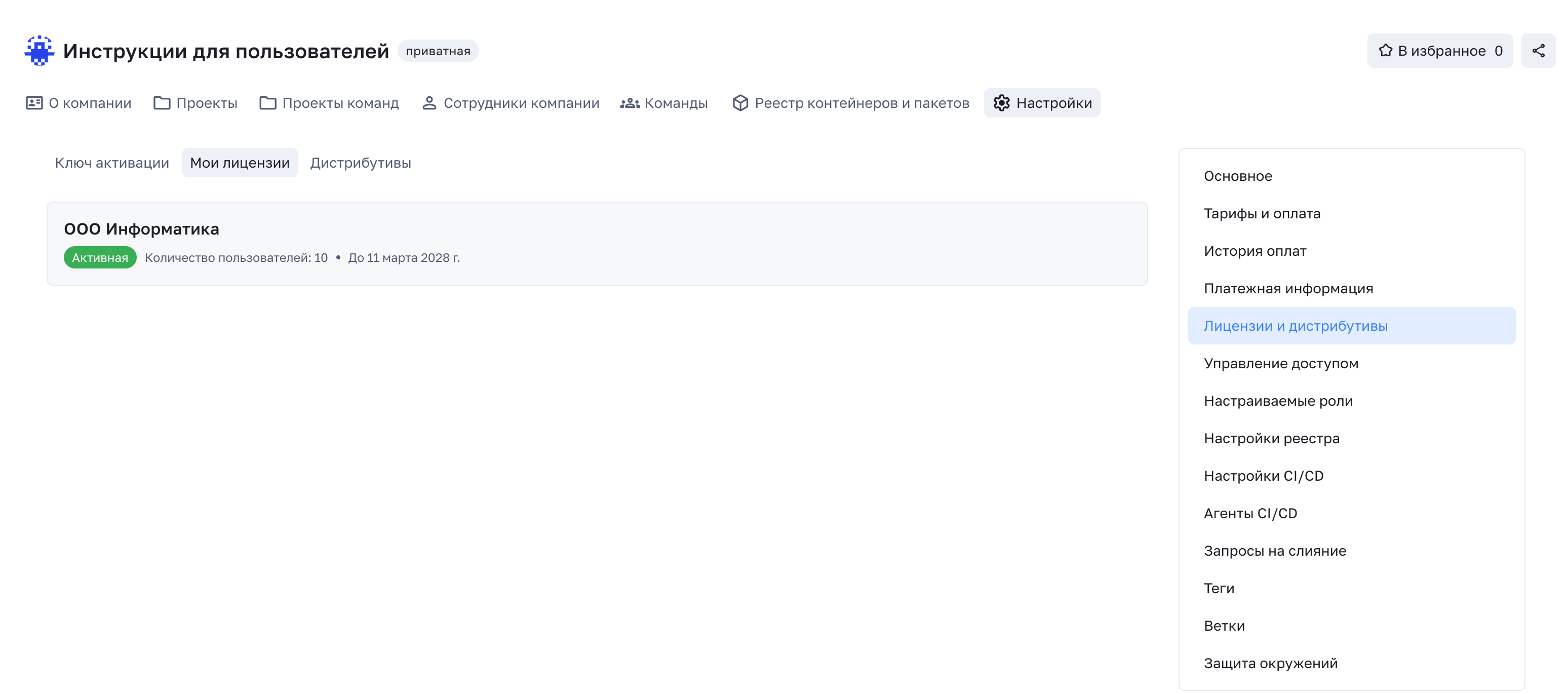
Download the available distribution from the Distributions page. Proceed with the installation according to the documentation.
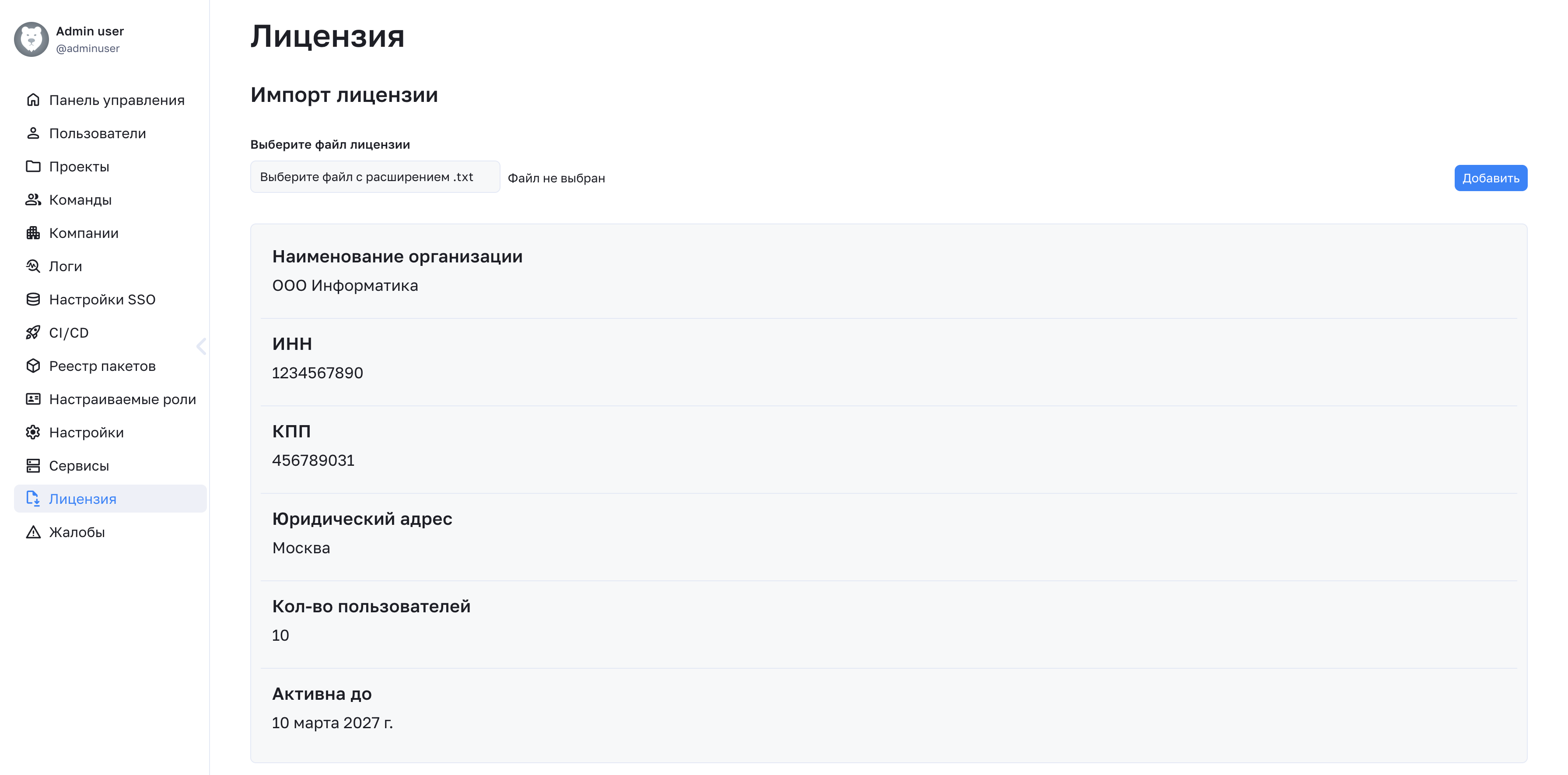
After installing and starting the distribution, go to the Admin Panel, License section. Upload the license file. Upon successful verification of the license file, you will see information about your company, validity period, and the number of users available for use under the license.
For activation issues and technical support, contact support@gitflic.ru, describing your question in detail.
Automated translation!
This page has been automatically translated. The text may contain inaccuracies.